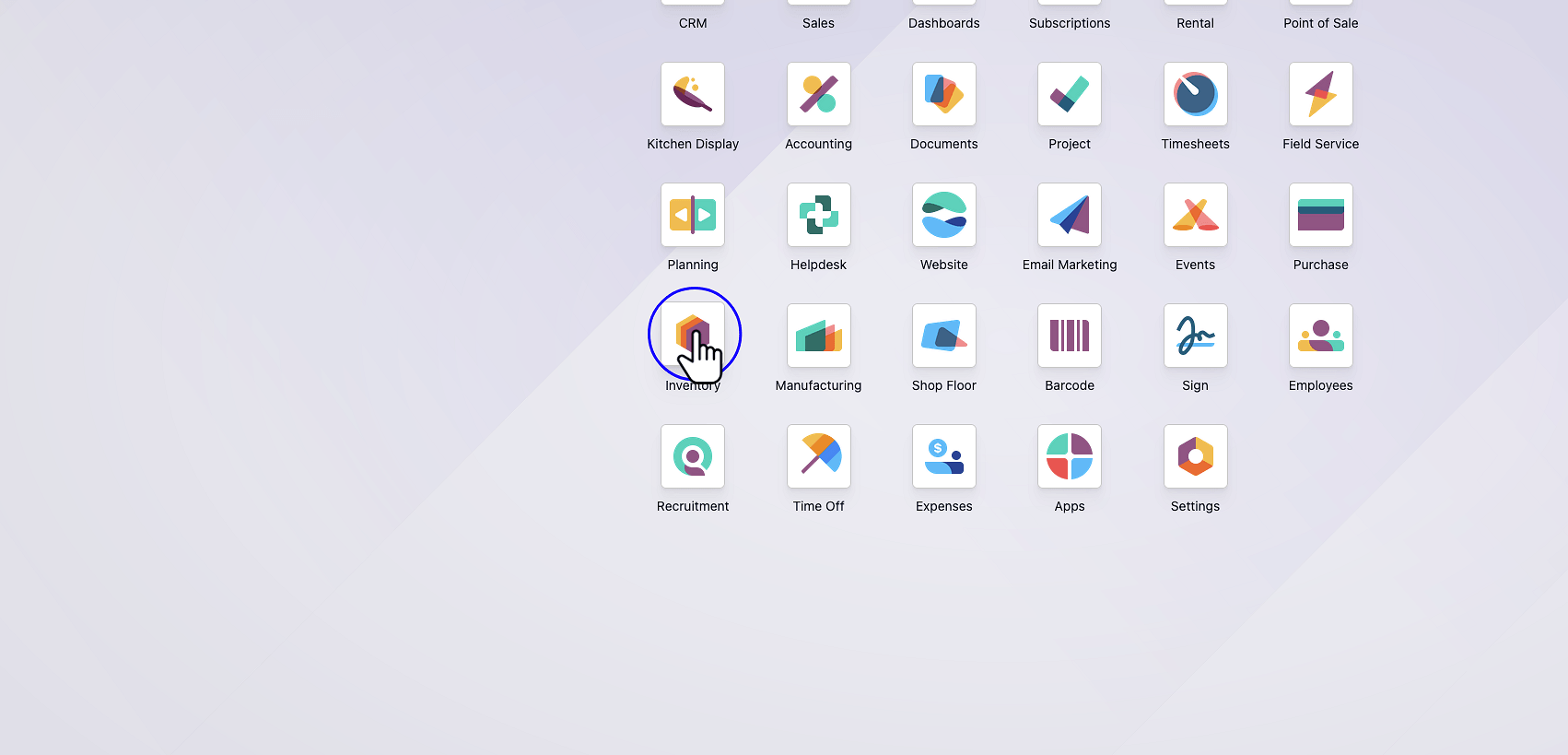
Navigate to the Inventory App
From the main Odoo dashboard, click on the Inventory application to begin.
A step-by-step guide to performing physical inventory adjustments and updating stock quantities in Odoo.
Inventory adjustments allow you to correct the system’s recorded stock levels to match your actual physical counts. This process is essential for cycle counting and maintaining accurate inventory valuation.
From the main Odoo dashboard, click on the Inventory application to begin.
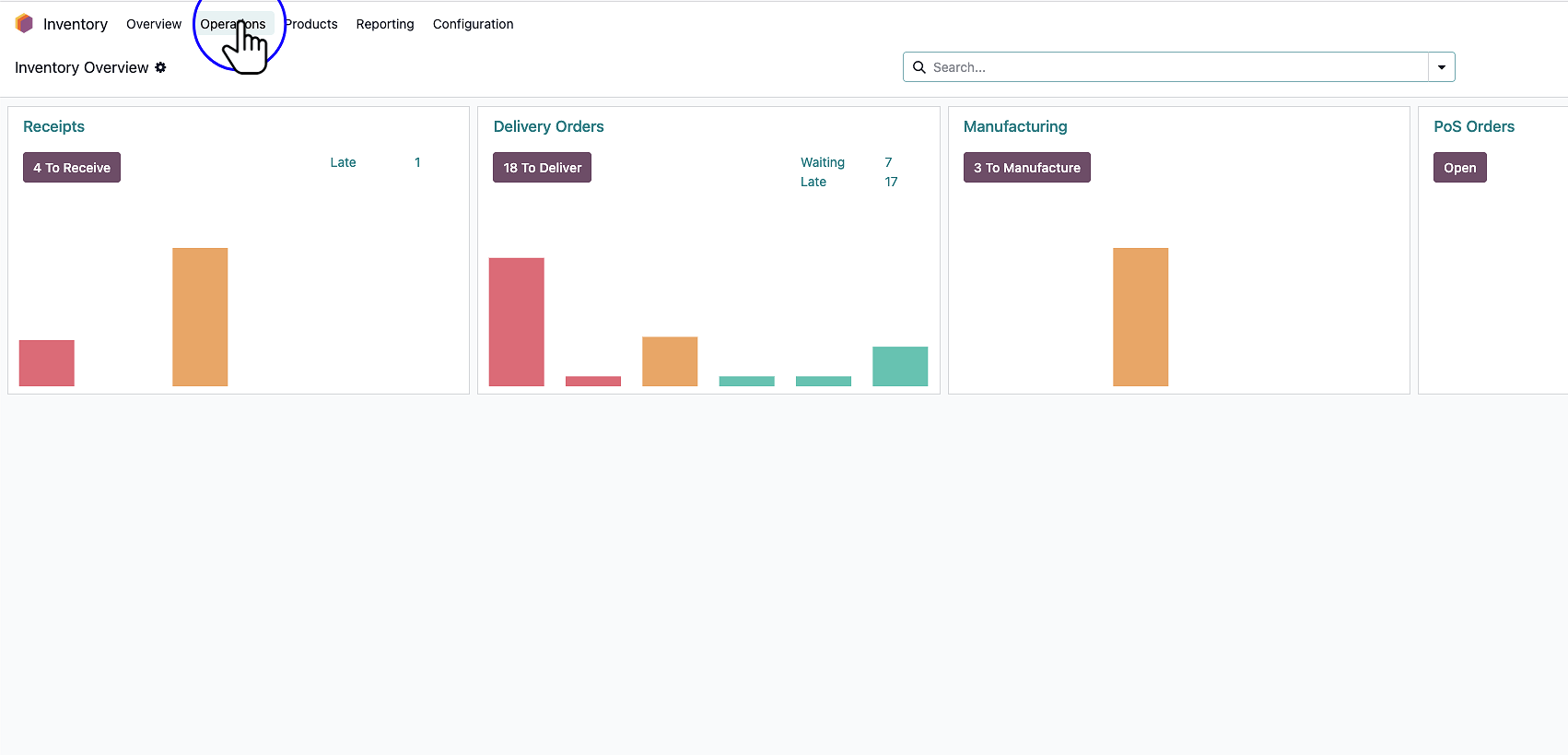
In the top navigation bar, click on the Operations menu to reveal available inventory tasks.
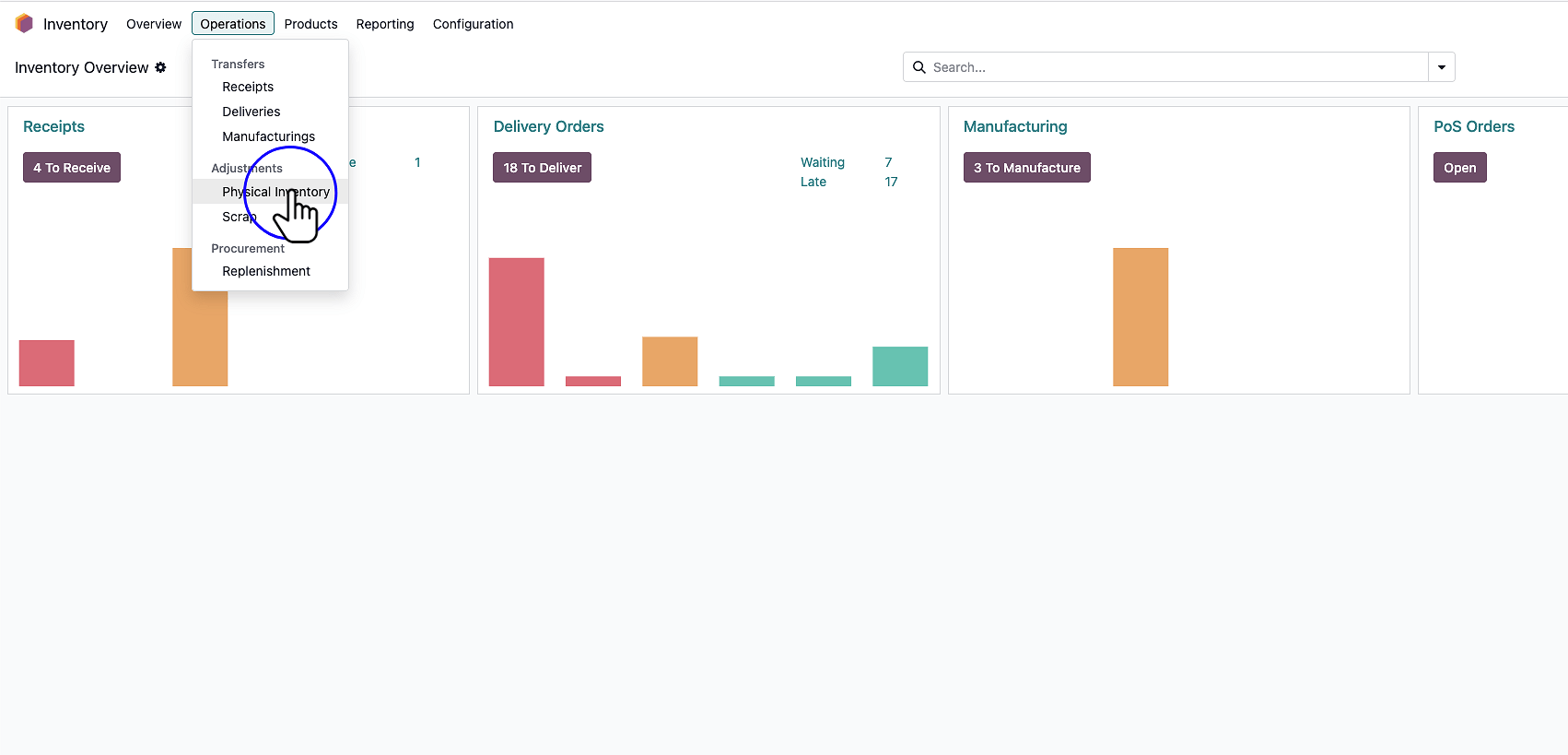
From the dropdown list, click on Physical Inventory. This will open the central view for all stock adjustments and cycle counts.
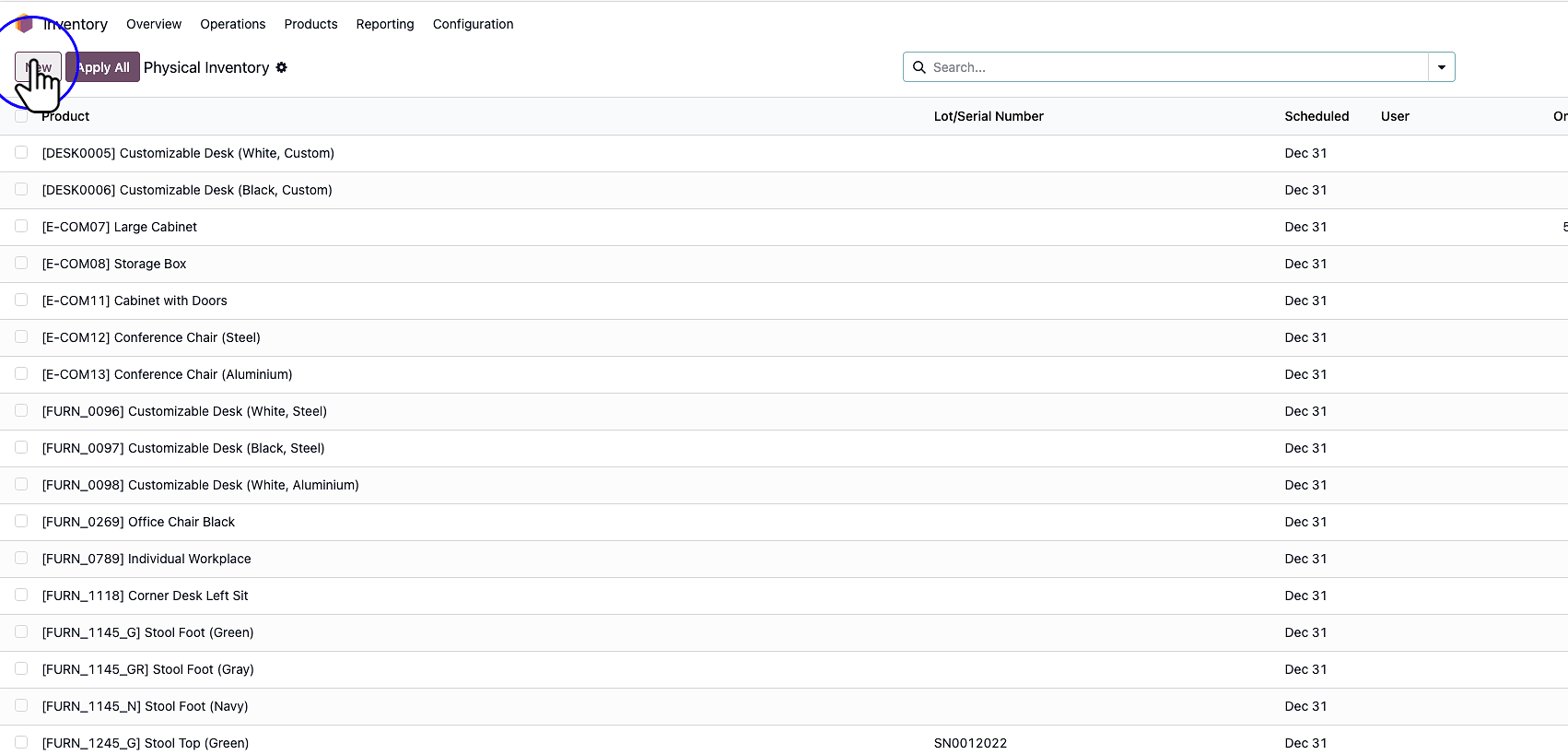
Click the New button to add a new product line for counting.
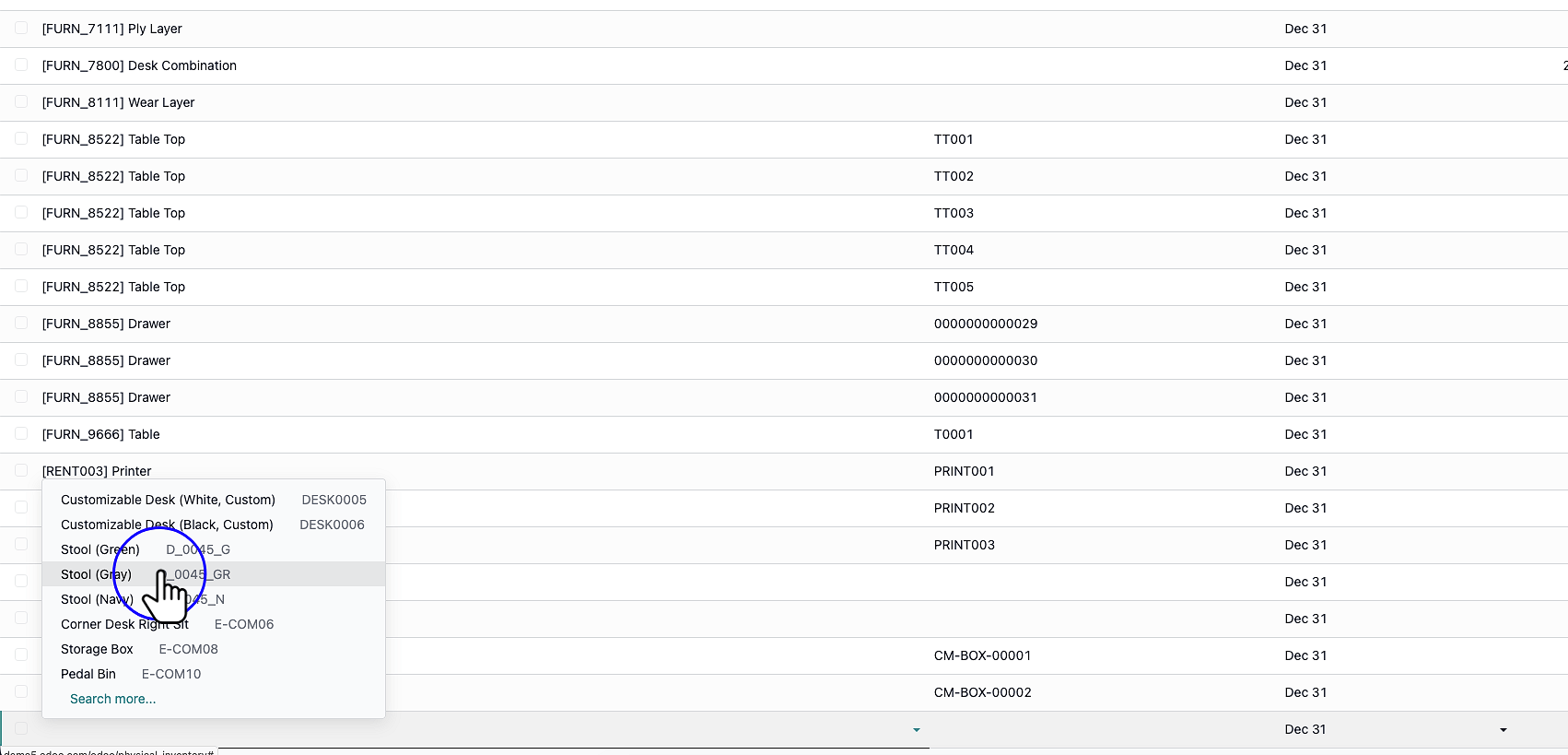
In the newly created line, use the dropdown menu to search for and select the specific product you are adjusting.
Click into the Counted Quantity column and enter the actual physical amount of the product currently on hand. The system will automatically calculate the difference.
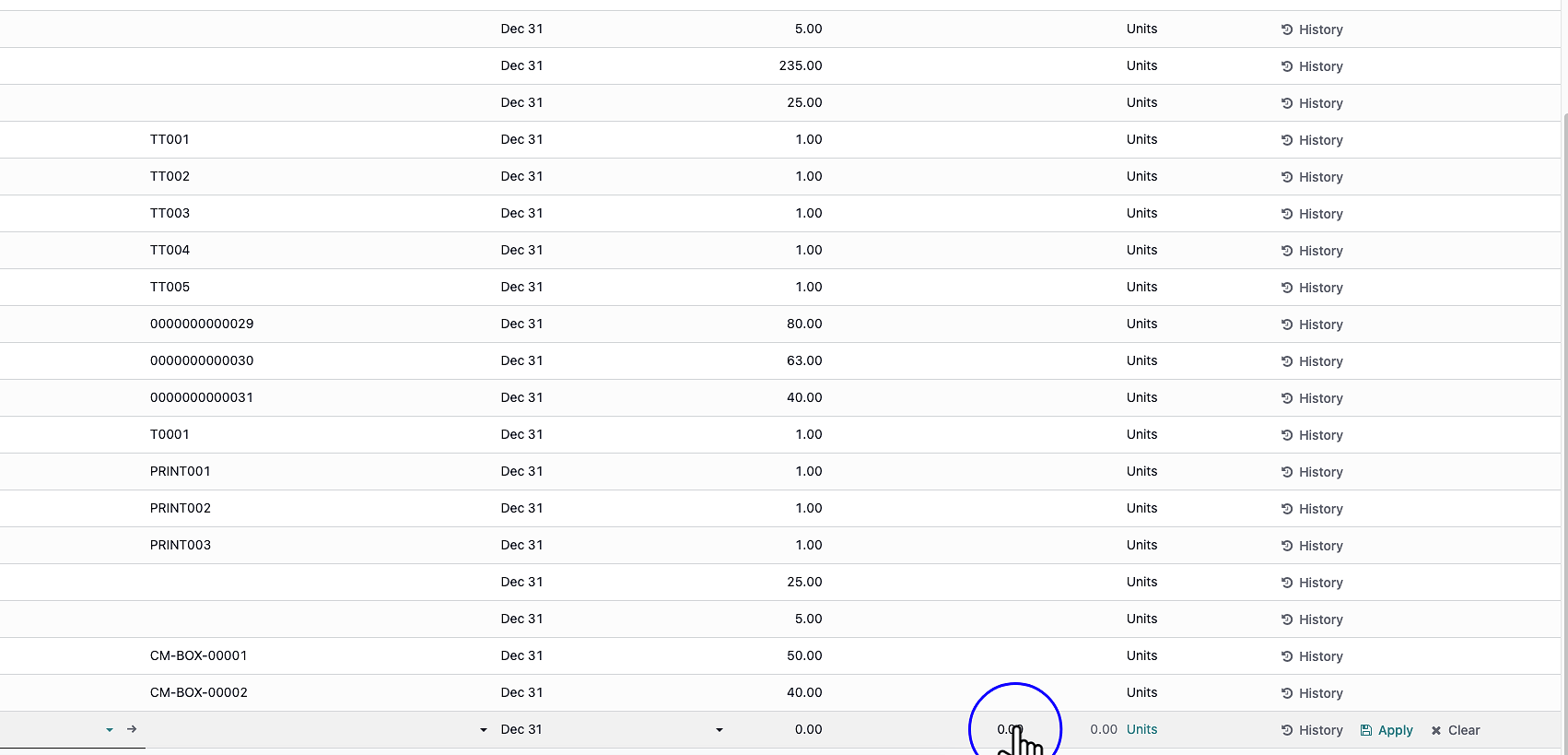
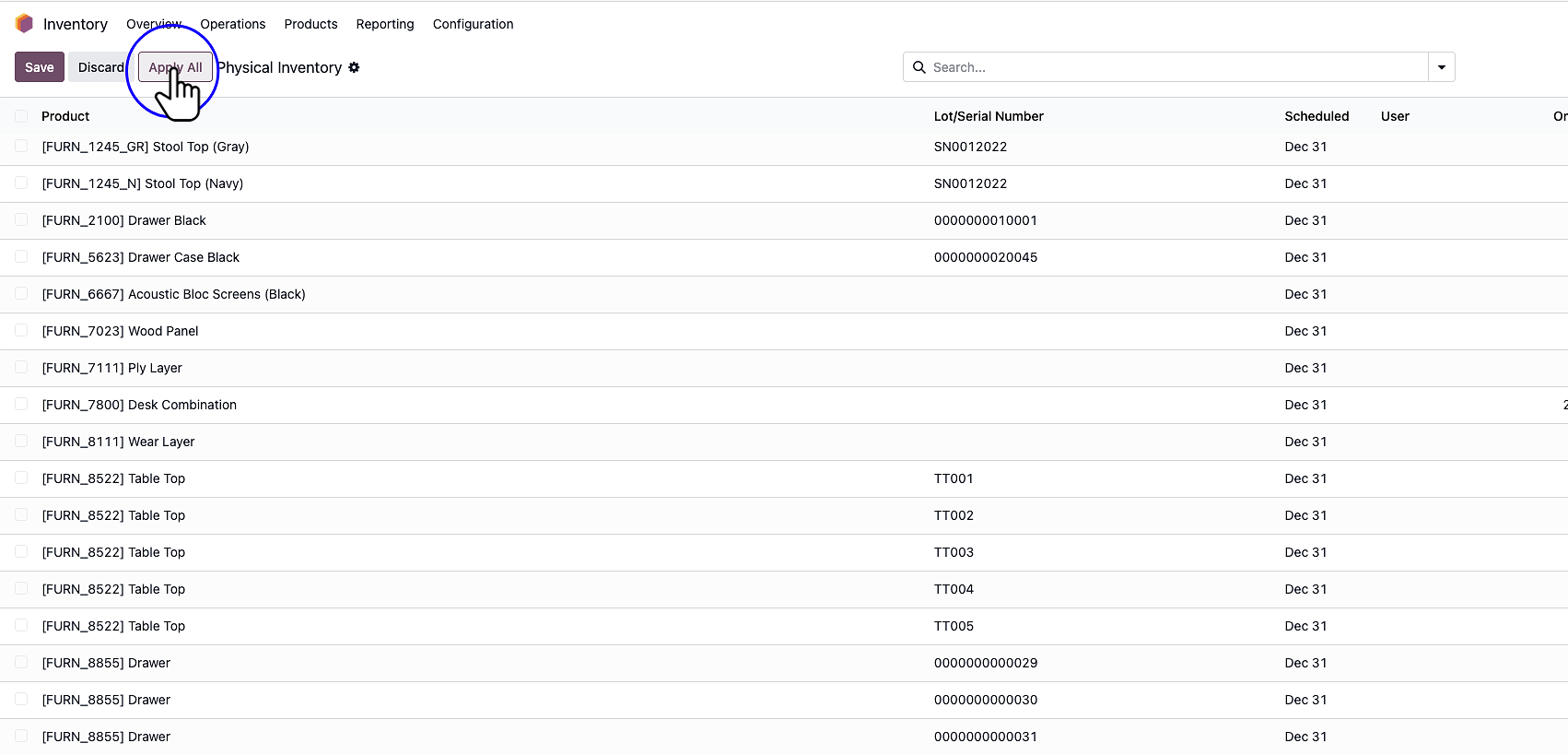
Once you have verified the quantities, click the Apply button to finalize the adjustment.