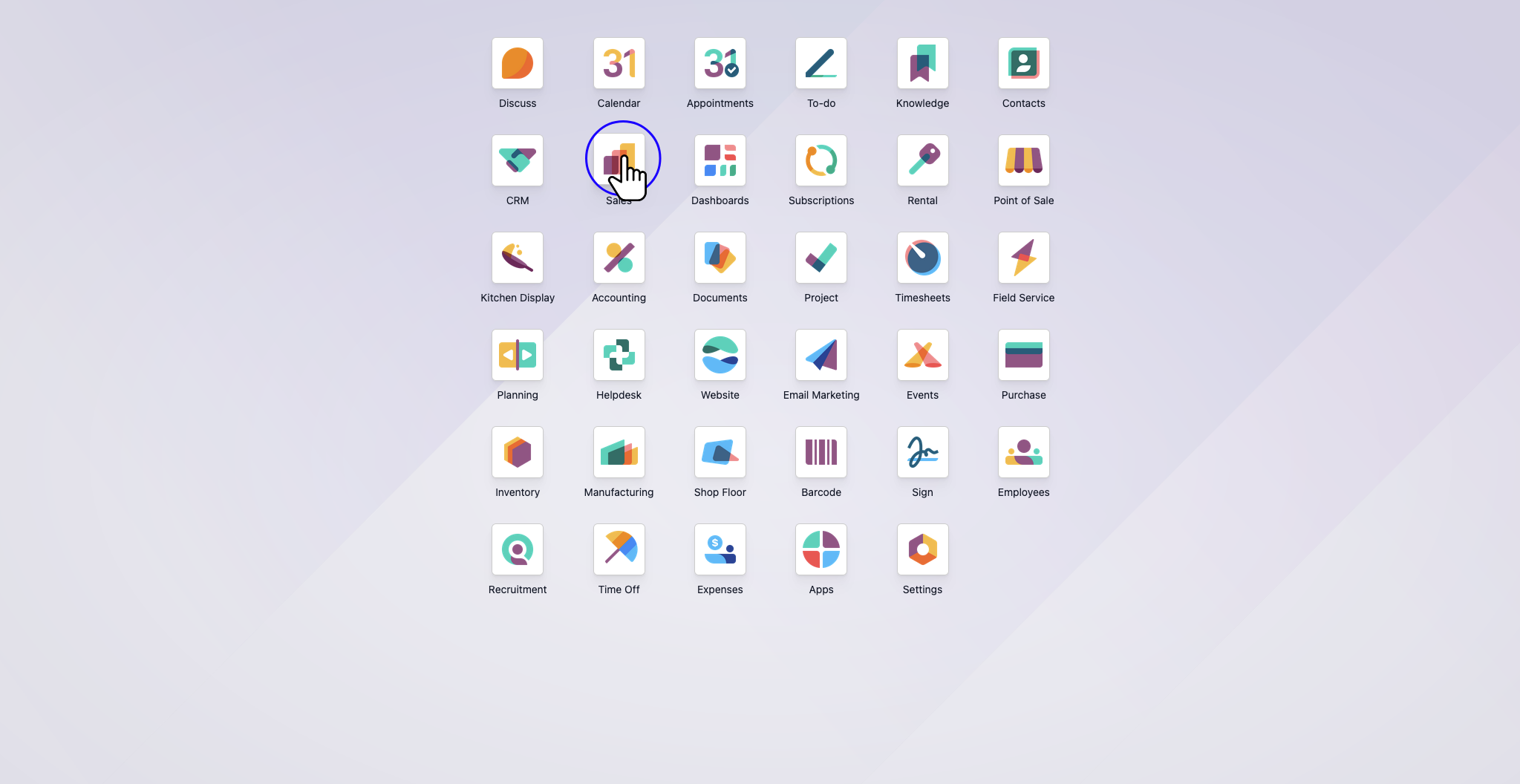
Navigate to the Sales Module
Access the primary Odoo dashboard and select the Sales application. This module serves as the central hub for all quotation and order management activities.
A comprehensive, step-by-step Standard Operating Procedure (SOP) for creating and confirming a sales order in Odoo, from initial customer selection to final authorization.
Creating a Sales Order is a foundational process within the Odoo Sales application. This procedure outlines the critical steps required to generate a new quotation, populate it with the appropriate customer and product data, and formalize it into a confirmed order.
Access the primary Odoo dashboard and select the Sales application. This module serves as the central hub for all quotation and order management activities.
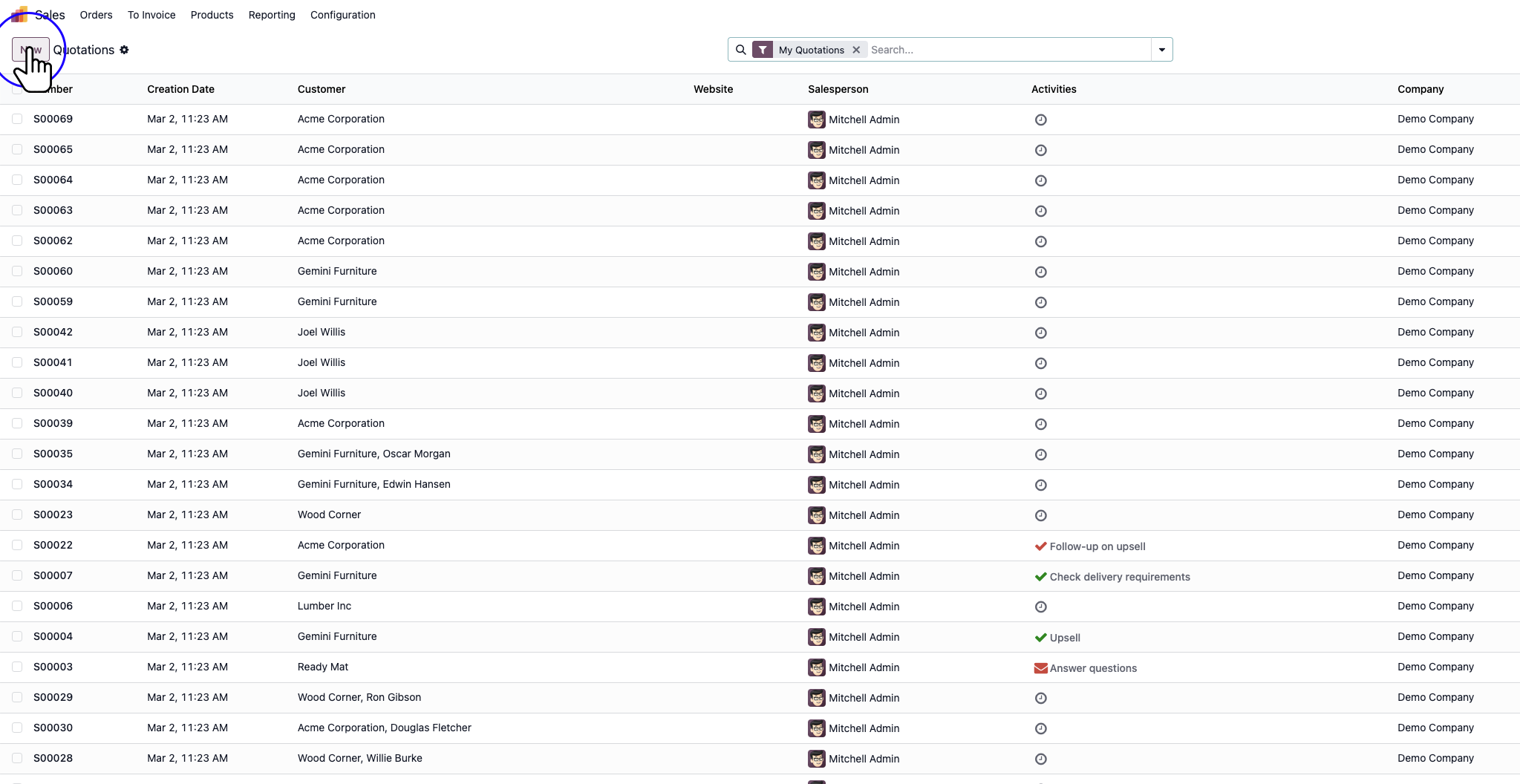
From the Sales dashboard, click the New button located in the top-left corner. This action generates a blank quotation draft.
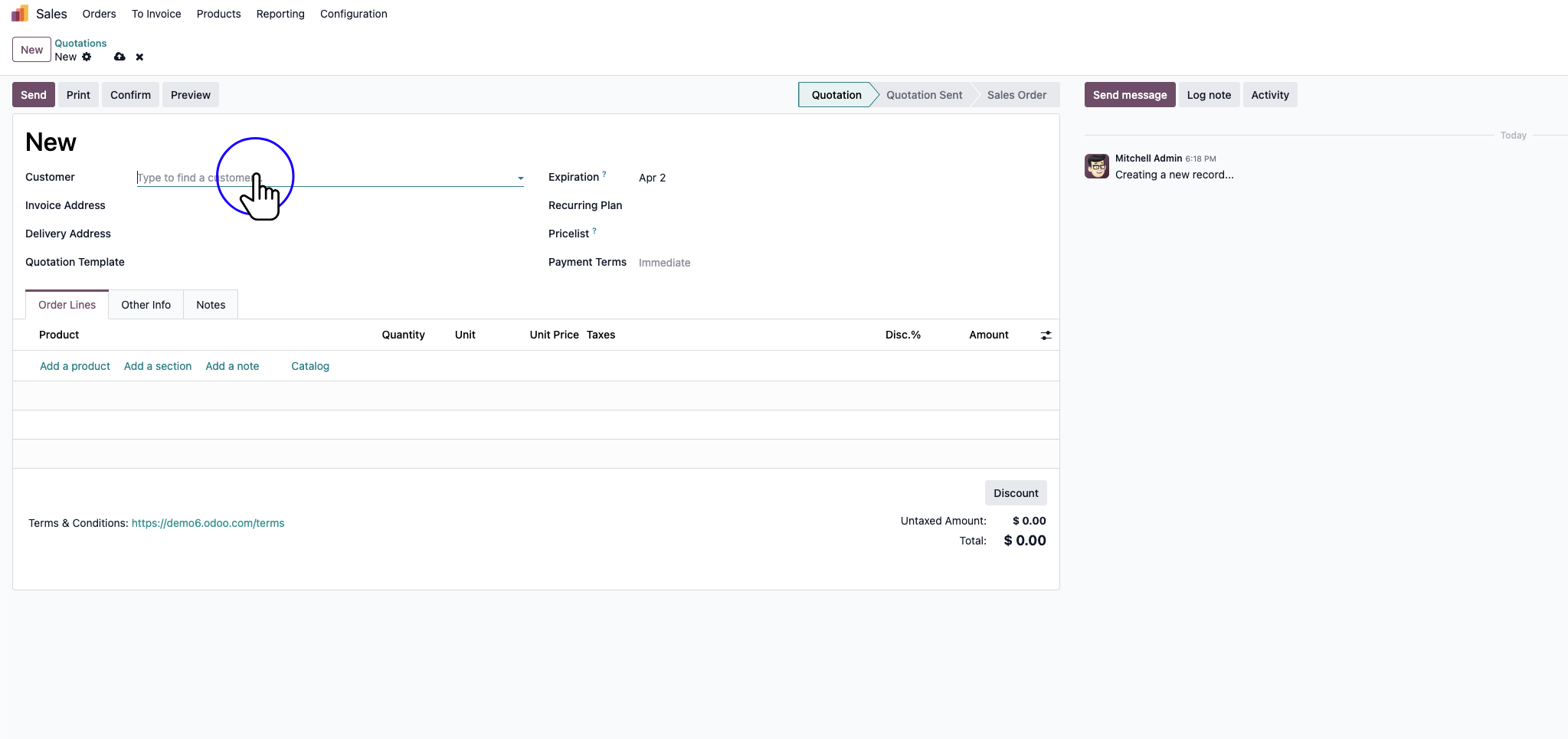
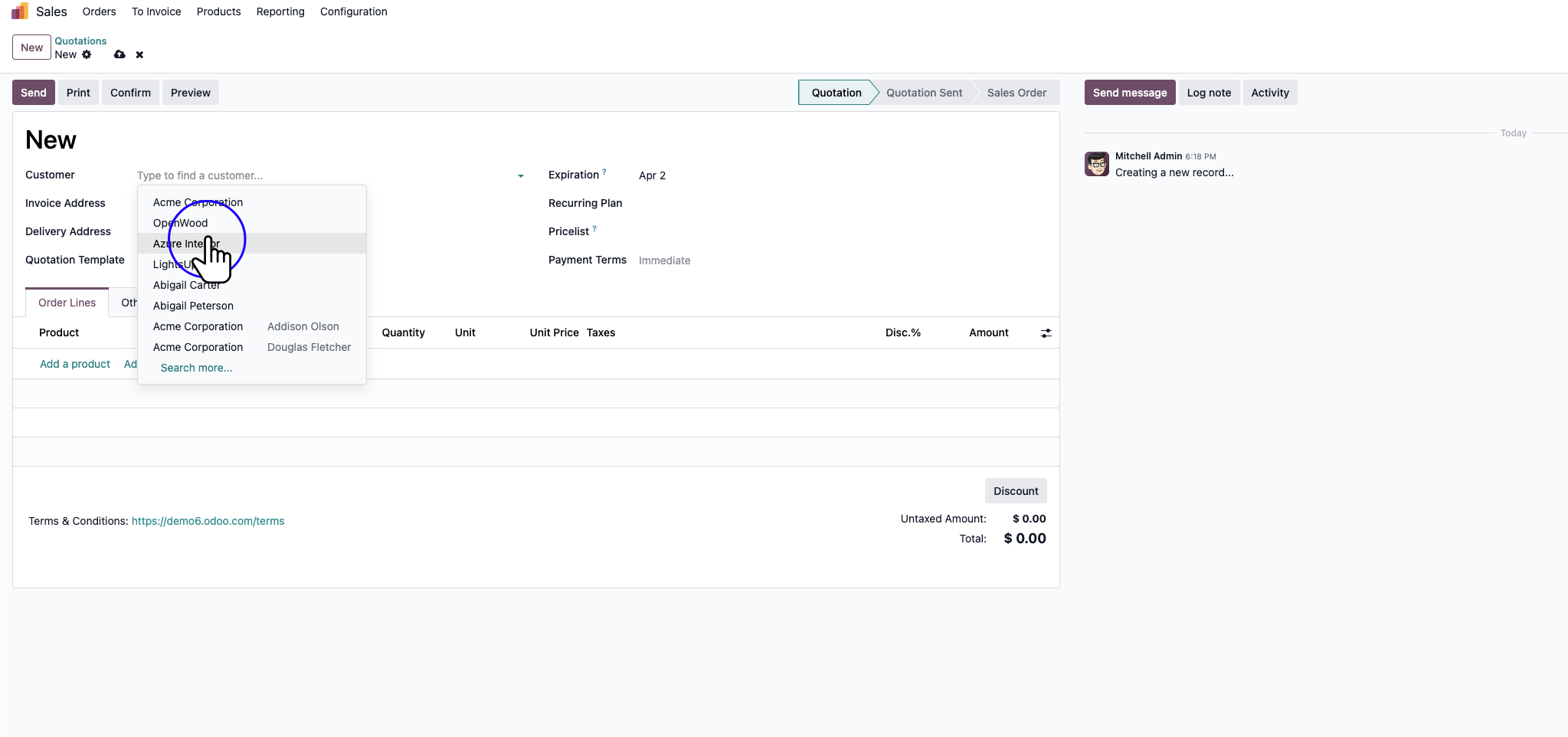
In the newly created quotation, locate the Customer field. Click on the drop-down menu to access your organization’s directory of contacts and partners.
Select the appropriate customer from the list. Upon selection, Odoo will automatically populate associated fields such as the invoice and delivery addresses based on the customer’s profile.
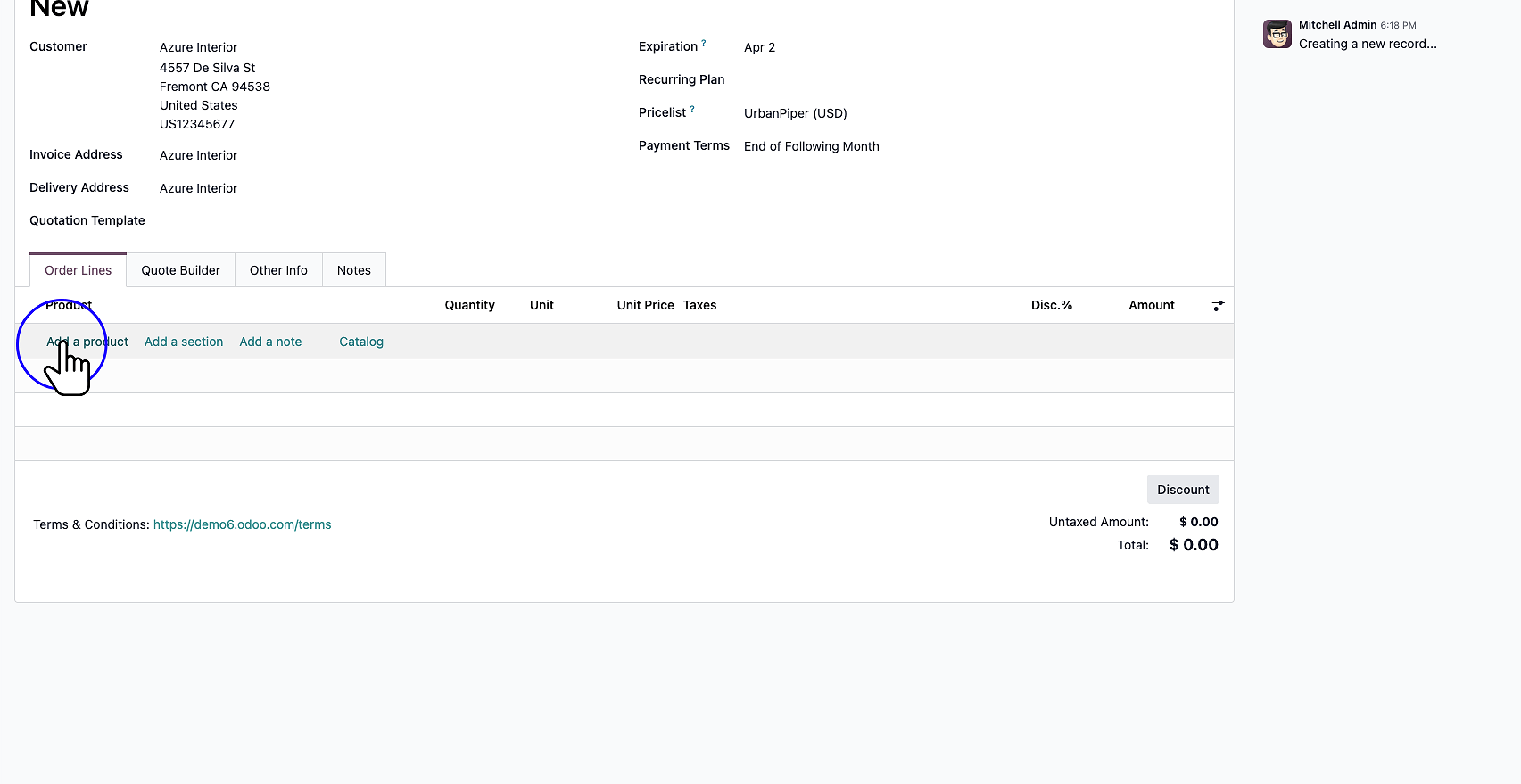
Navigate to the Order Lines tab within the quotation. Click Add a product to begin populating the order with the items requested by the customer.
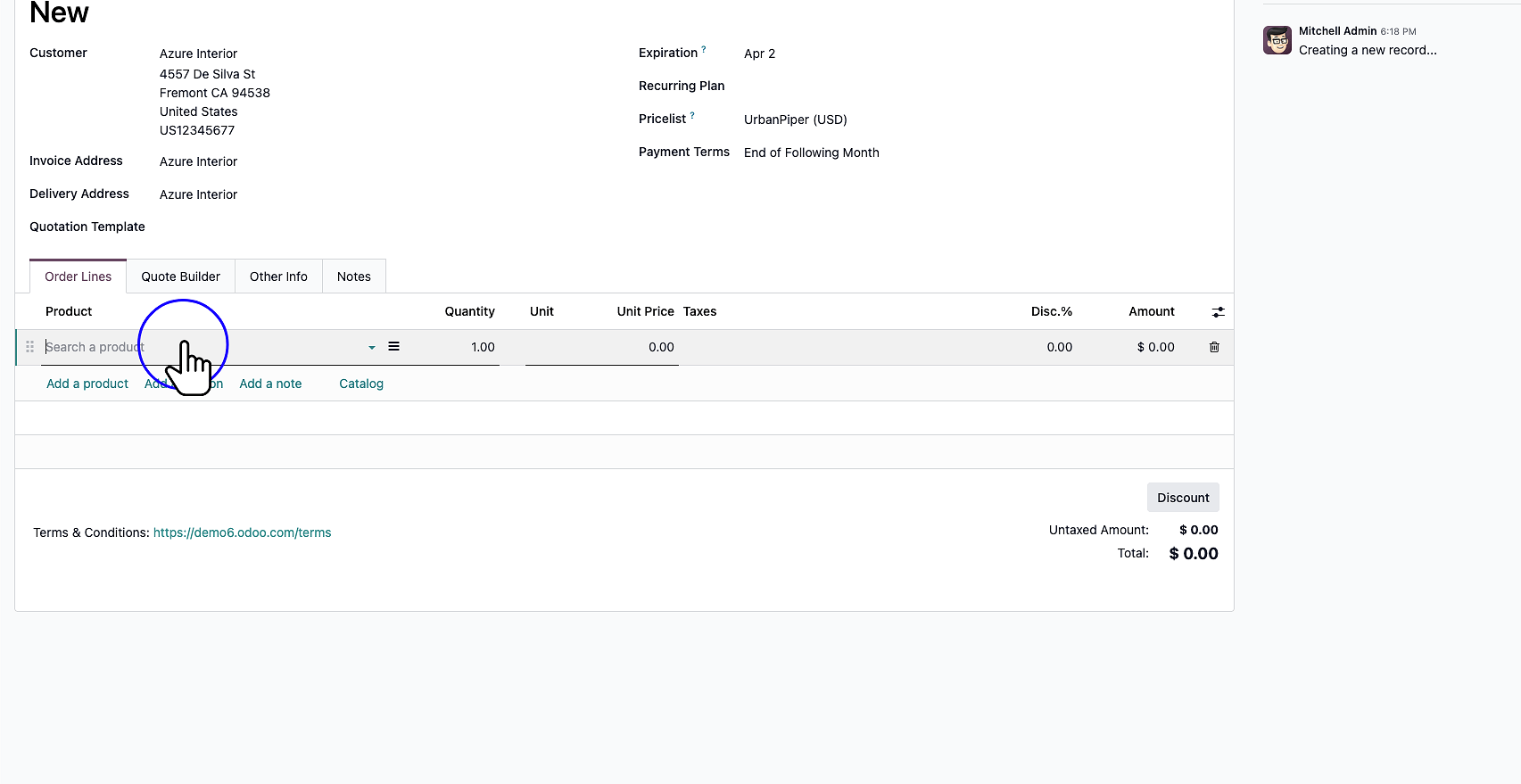
A new line will appear in the order table. Click the drop-down within the product field and select Search More… (or start typing) to query the product catalog.
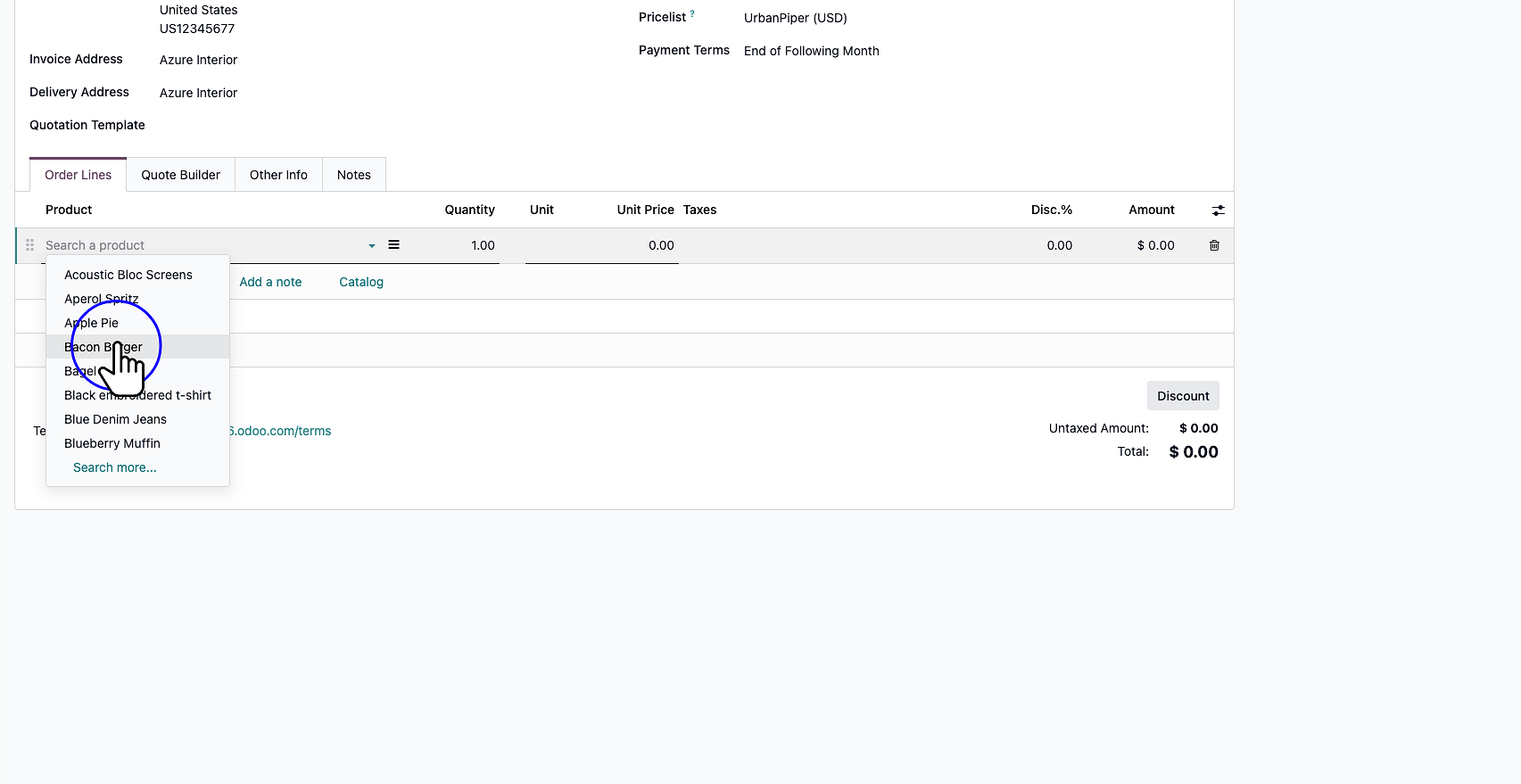
Identify and select the desired product from the catalog. After selection, specify the quantity, verify the unit price, and apply any relevant taxes or discounts.
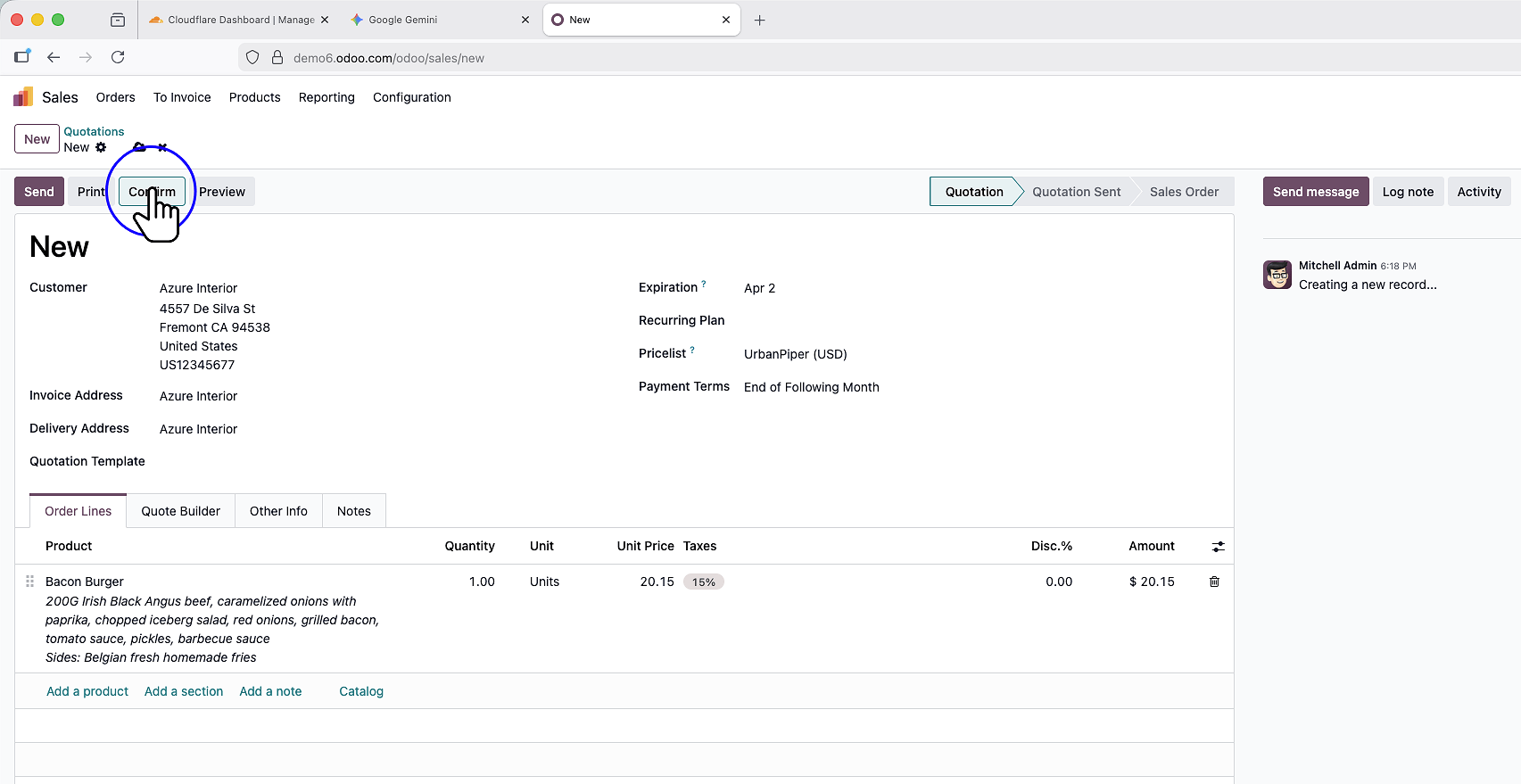
Carefully review all order details, including product lines, quantities, pricing, and the total calculated amount. Once you are satisfied with the draft, prepare to formalize the quotation.
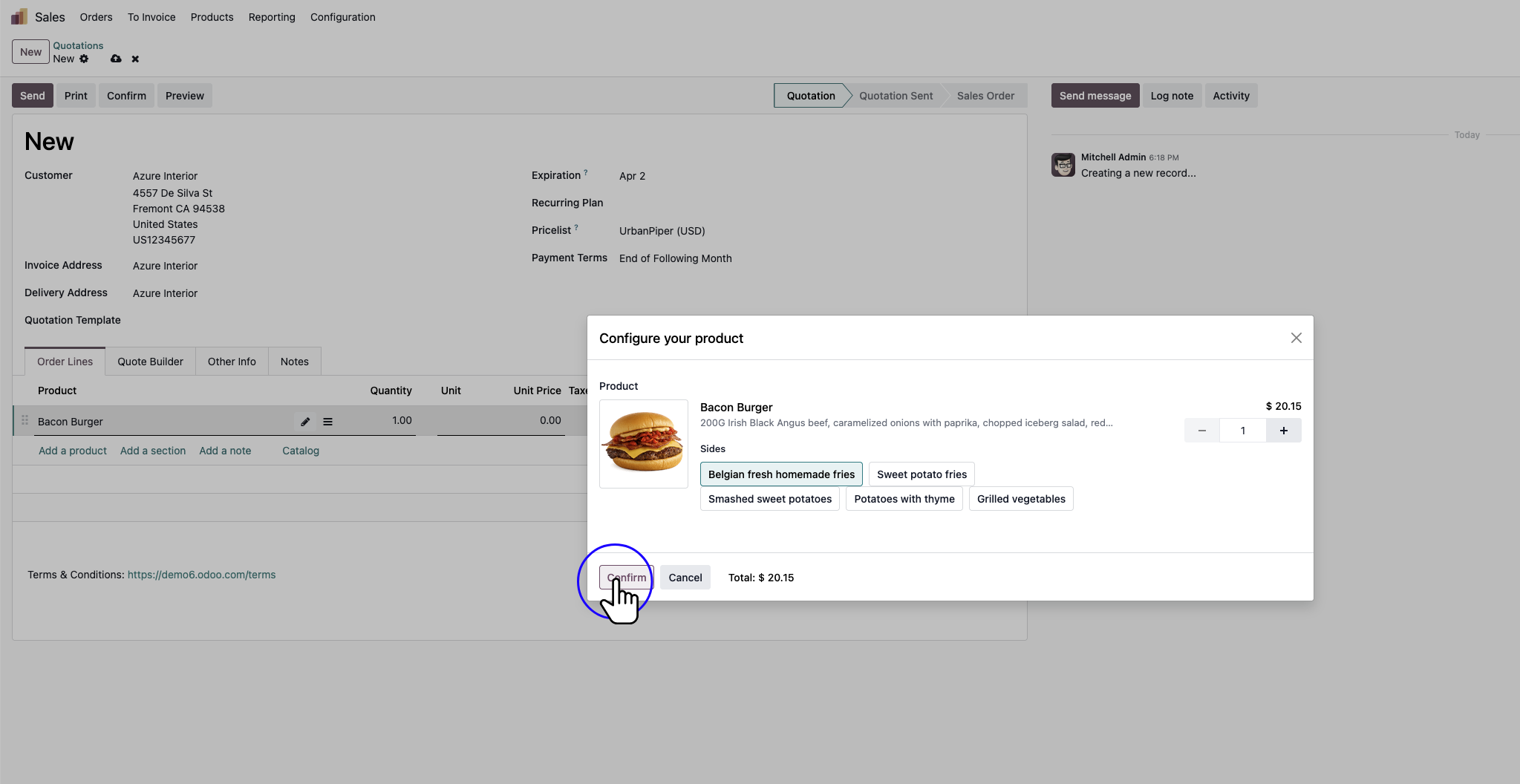
Click the Confirm button to officially transition the document from a “Quotation” to a “Sales Order.” This action authorizes the sale and triggers downstream processes such as delivery orders and invoicing capability.