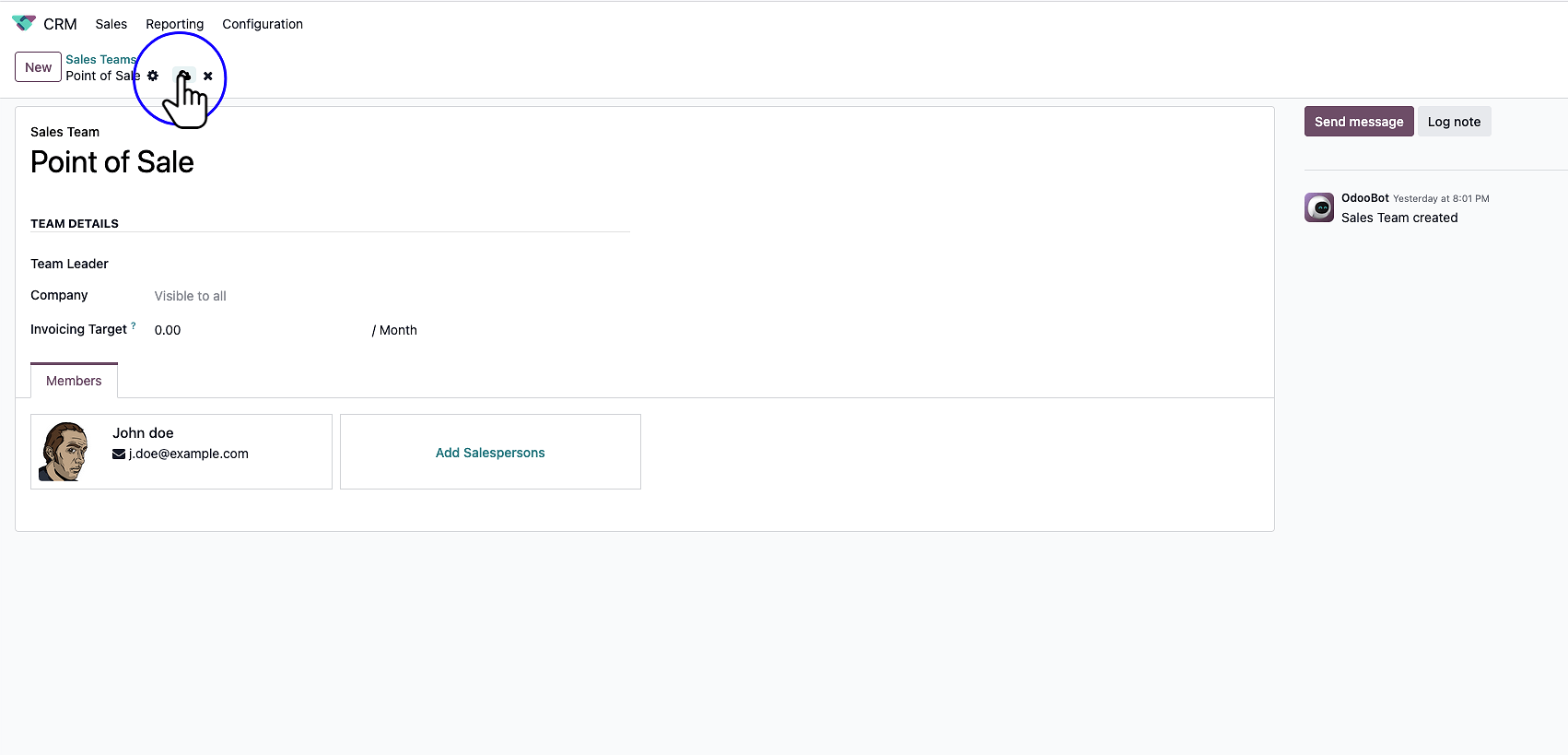
Navigate to the CRM App
Open the primary Odoo dashboard and click on the CRM application to begin.
Step-by-step guide to setting up and managing sales teams in Odoo, including adding salespersons to specific Point of Sale teams.
Managing Sales Teams allows you to group users, assign targets, and configure specific permissions for different sales channels (like Point of Sale or B2B sales).
Open the primary Odoo dashboard and click on the CRM application to begin.
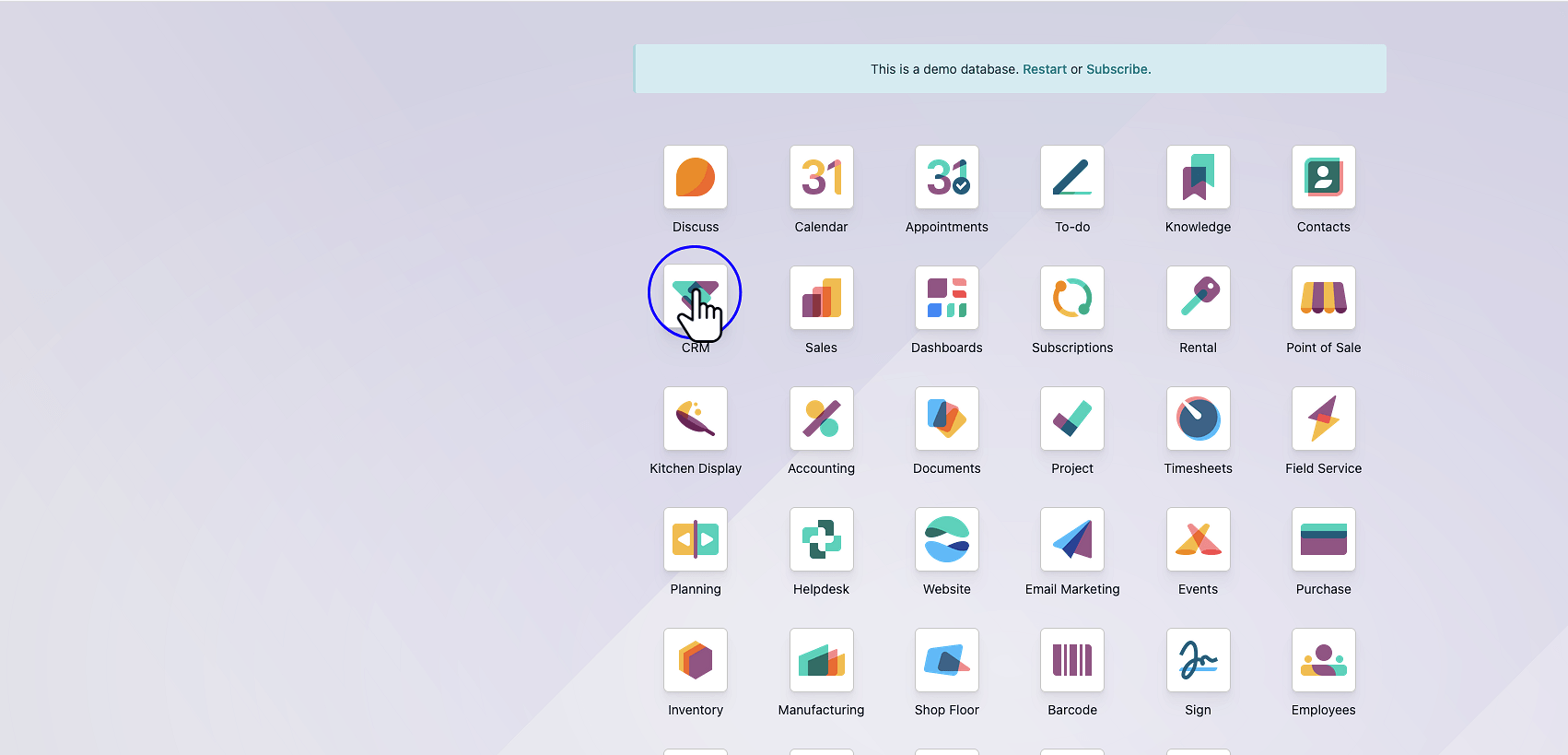
In the top menu bar, click on Configuration to access the settings for the CRM module.
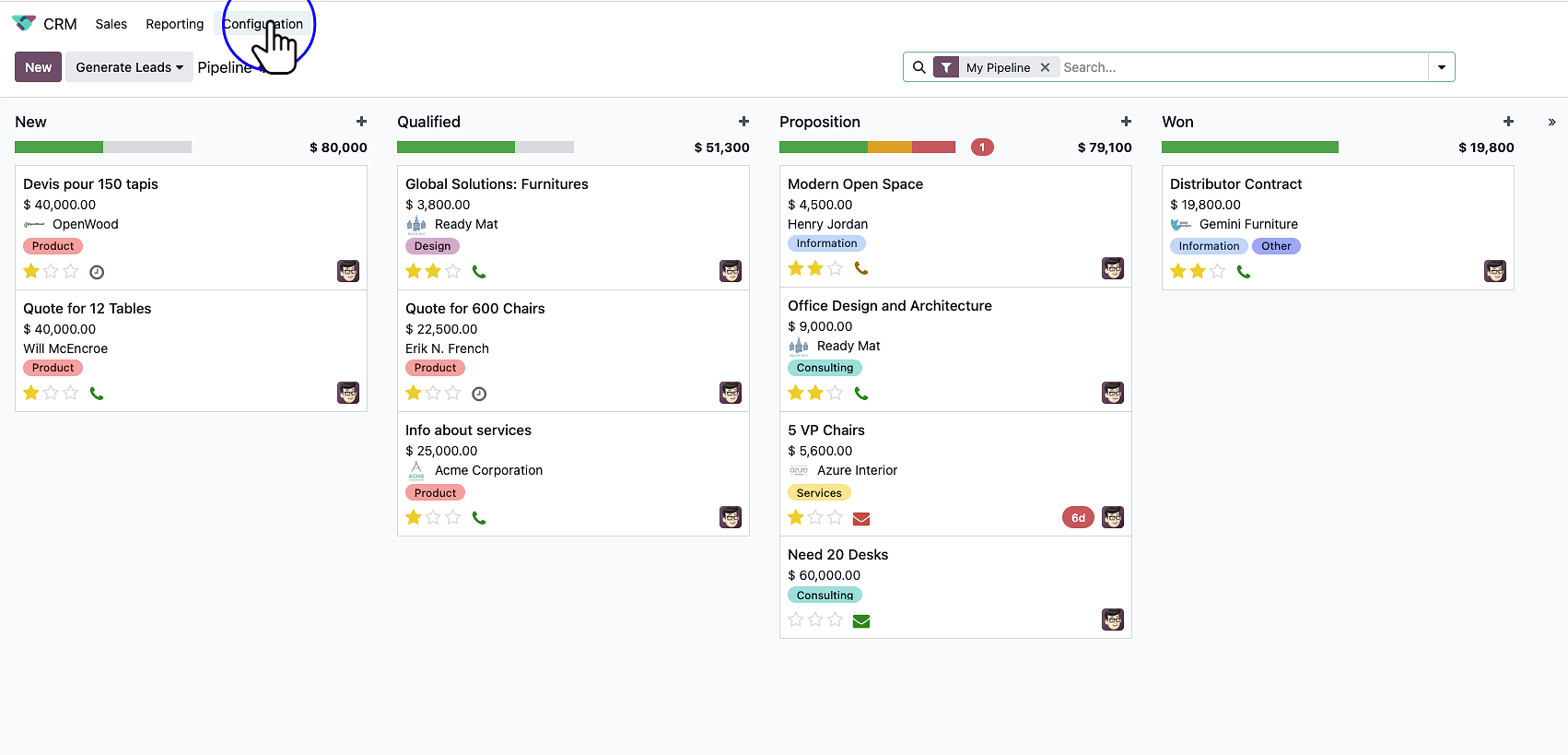
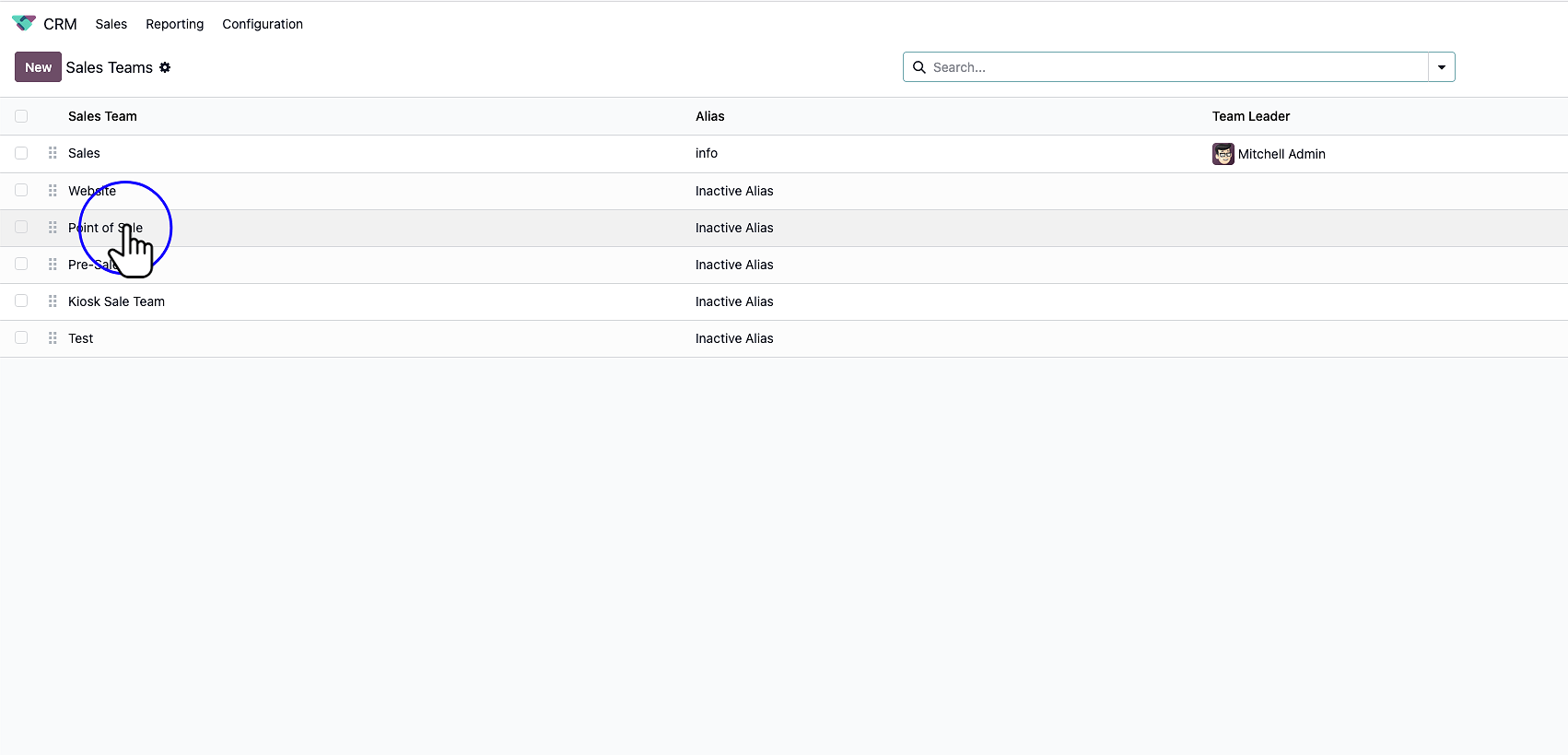
From the Configuration dropdown menu, click on Sales Teams. This will open the list of all currently configured teams.
Select the specific team you want to manage. In this example, we are clicking on the Point of Sale team.
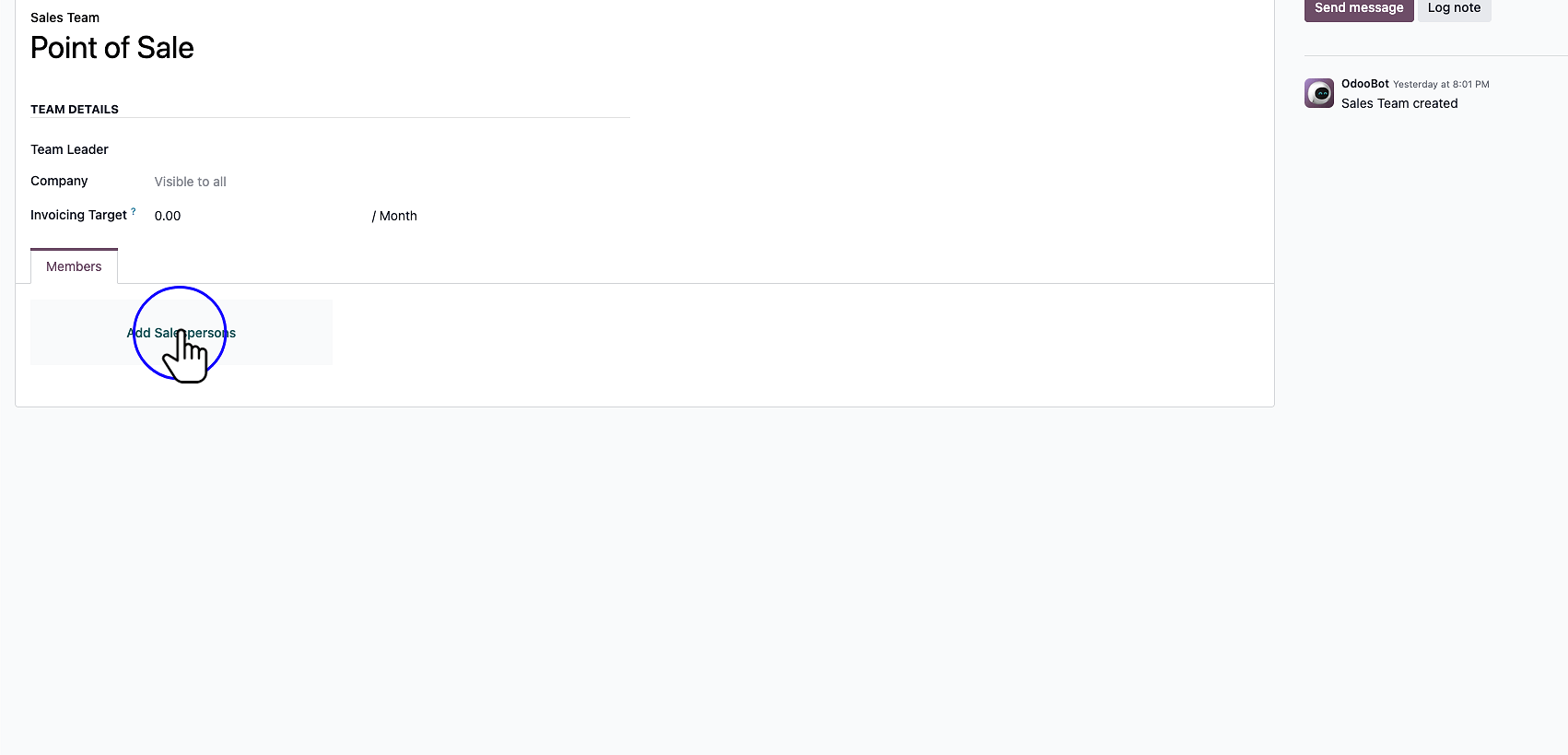
In the team configuration page, locate the members section and click Add Salespersons to assign new employees to this team.
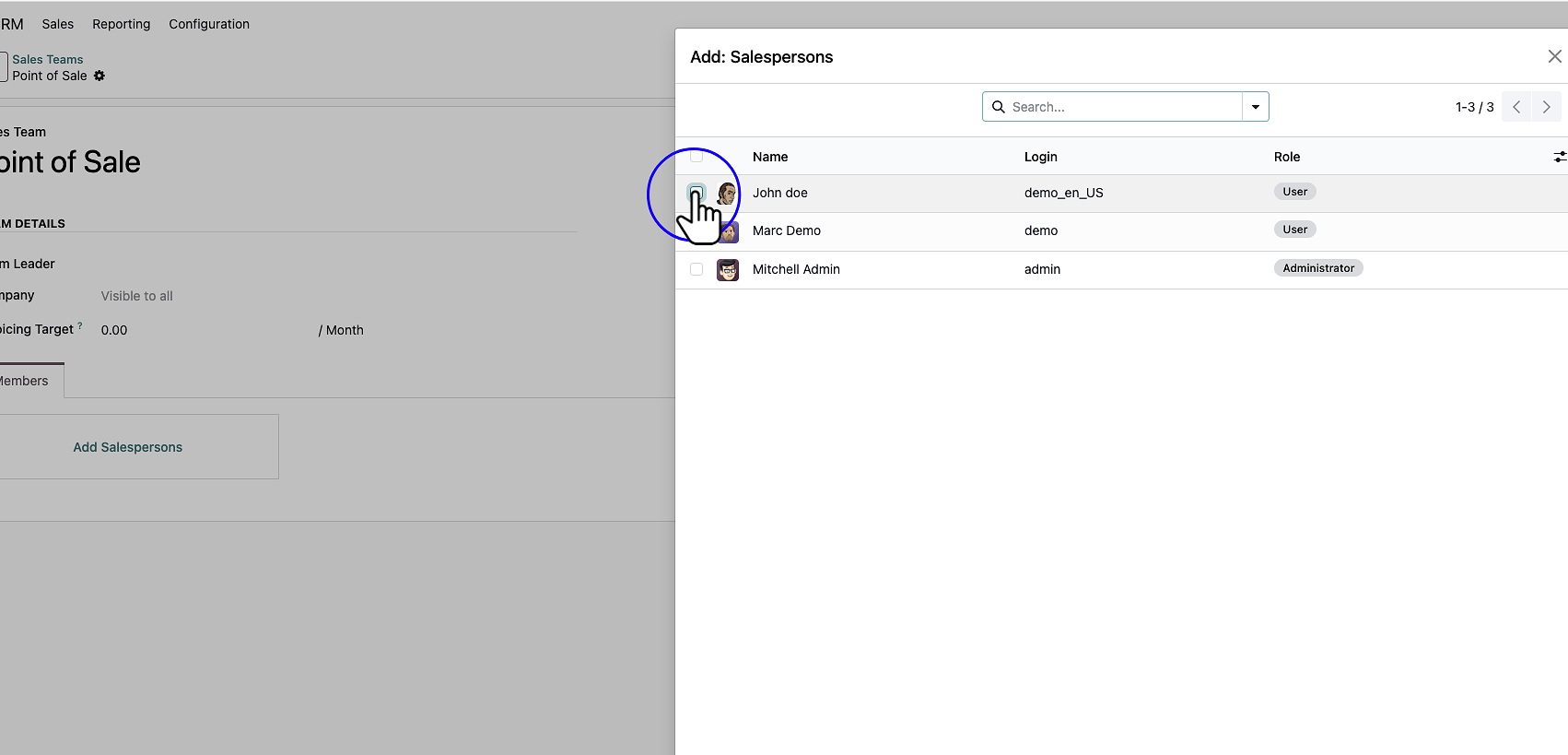
A list of available users will appear. Click the checkbox next to the name of the employee(s) you wish to add.
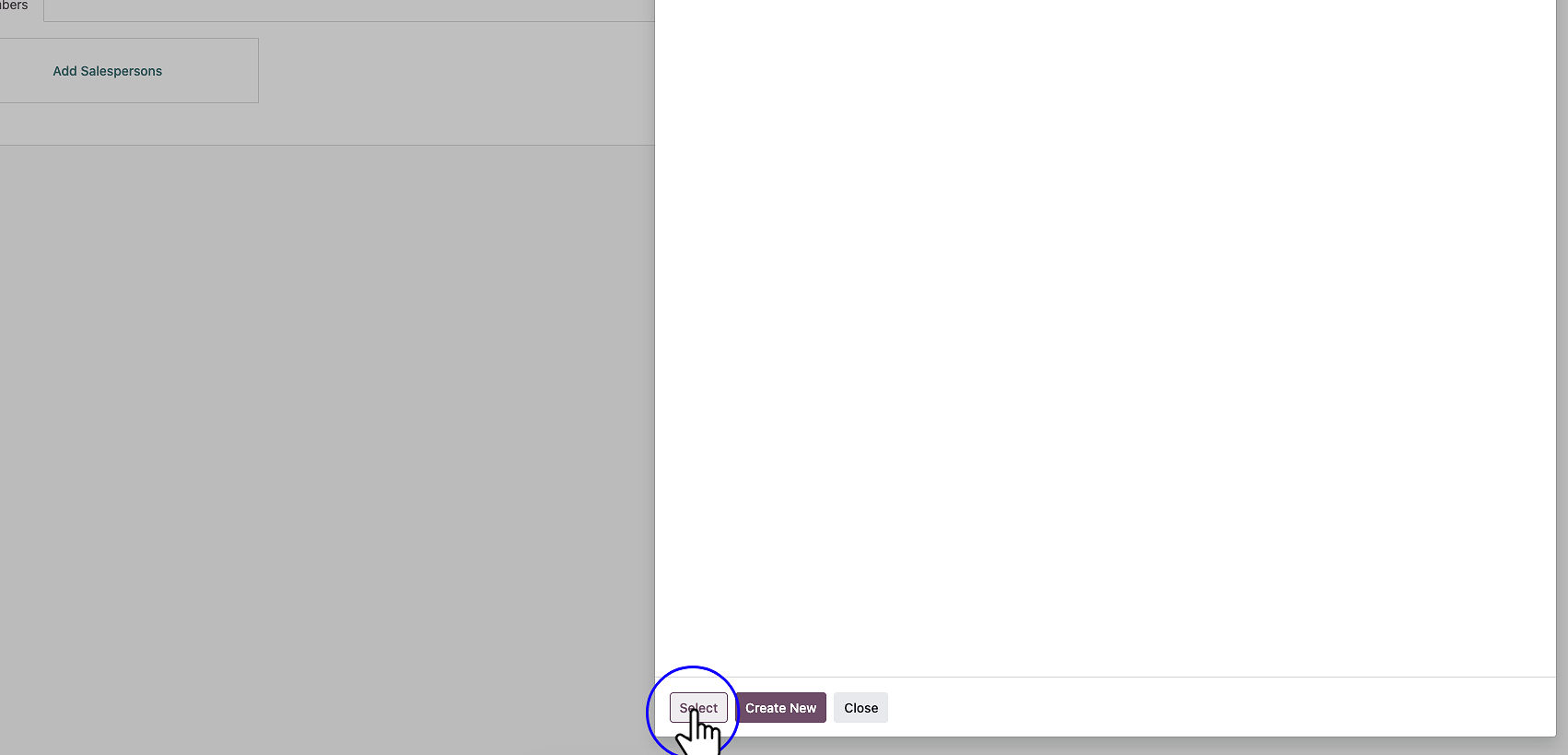
Once you have selected the appropriate users, click the Select button to confirm and add them to the team.
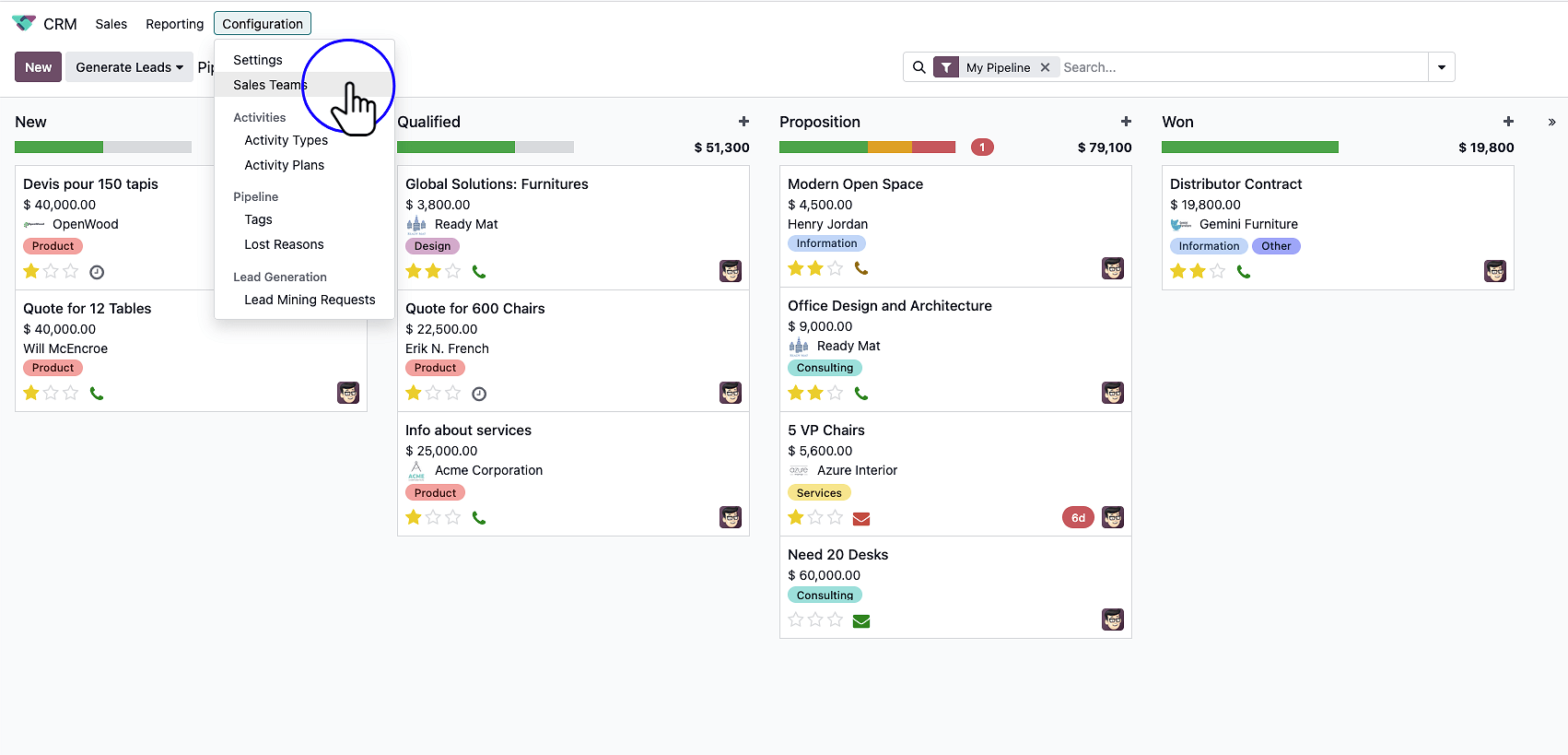
Click the Save icon (typically represented by a cloud with an arrow) at the top of the screen to lock in your changes.